How to Organize a Digital Music Library Step by Step
Quick Summary
To organize a digital music library, first decide your goals and audit your sources, formats, and devices. Then use a consistent artist, album, and track folder structure, clean the metadata tags in batches, and back up the finished collection in at least two places.
- Audit your sources, file formats, and devices before moving any files.
- Use one folder per artist and put the year in each album folder name.
- Set album artist to Various Artists for compilations so they stay grouped.
- Keep at least two backup copies, ideally one off-site or in cloud storage.
- Test a restore from your backup every six months.
Table of Contents
- Why a Digital Music Library Needs a Plan Before You Start
- Choosing a Digital Music Folder Structure That Lasts
- Cleaning and Standardizing Metadata Tags
- How to Organize a FLAC Music Library Without Losing Quality
- Picking Organize Music Library Software and Playback Tools
- How to Build a Digital Music Library From an Existing Collection
- Backing Up Your Collection and Booking Your Next Setup Step
- Frequently Asked Questions
Why a Digital Music Library Needs a Plan Before You Start
Last Updated: November 20, 2026
Most listeners build a digital music library by accident. Files pile up from CDs, downloads, and streaming rips until the collection is impossible to browse.
Before you touch a single file, decide what you want: fast browsing on a tablet, clean metadata for a music server, or reliable backups you can restore in an afternoon?
Start with a simple audit:
- Count your sources: CDs, downloads, and any music you rip from a streaming service
- Note your file formats, such as FLAC, MP3, or WAV
- List the devices you will use: a music server, a computer, a phone, or a network drive
A plan like this saves hours of rework as your collection grows.
Choosing a Digital Music Folder Structure That Lasts
A good folder structure is the backbone of any digital music library.
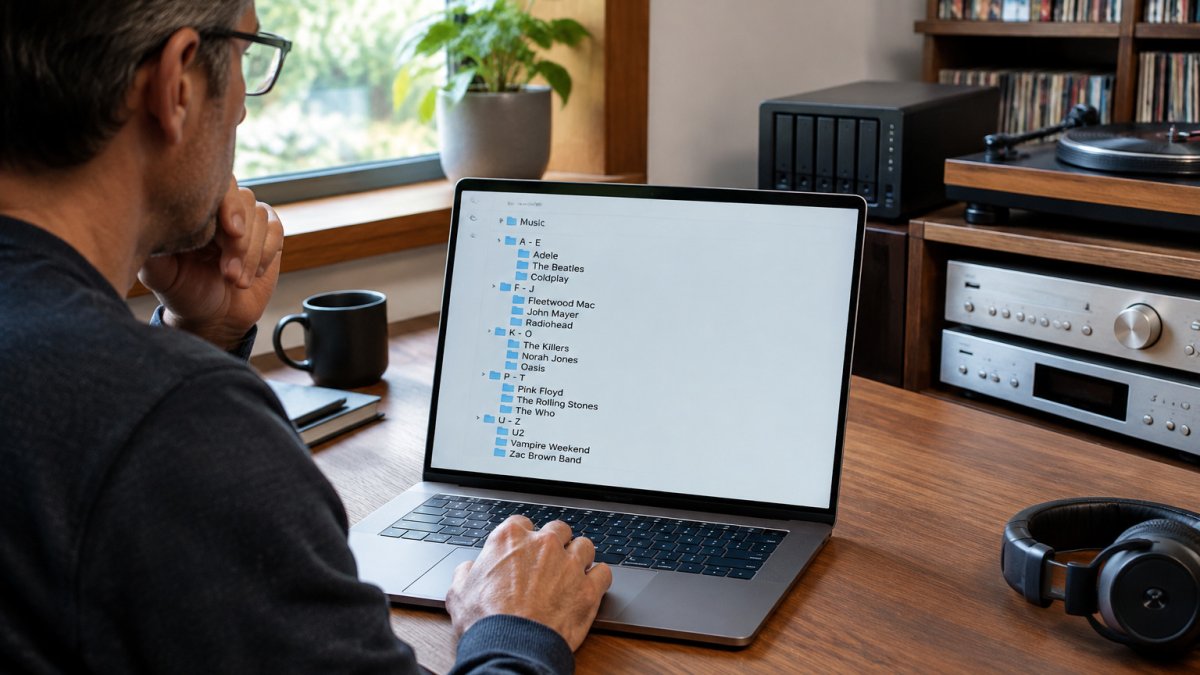
A simple, reliable pattern looks like this:
Music/ Artist Name/ Album Name (Year)/ 01 Track Title.flac 02 Track Title.flac Follow these rules to keep the structure lasting:
- Use one folder per artist, and avoid "The" or "A" prefixes unless you use them everywhere
- Put the year in the album folder name so releases sort by date
- Use track numbers at the start of each file name, with leading zeros
Watch out: Renaming folders after your library is large can break playlists and server links. Settle the structure early, then make changes in one batch.
Store the music on a dedicated drive or network share, and keep a second copy elsewhere. A solid folder plan makes that backup far easier.
The article's folder rules are easy to scan at a glance:
| Rule | What to do | Why |
|---|---|---|
| Artist folder | One folder per artist | Keeps the library easy to search |
| Album folder | Include the year, e.g. Album Name (Year) | Releases sort by date |
| Track names | Track number first, with leading zeros | Keeps tracks in album order |
| File names | Avoid special characters | Some systems and network drives reject them |
| Structure changes | Make them in one batch | Renaming later can break playlists and server links |
Cleaning and Standardizing Metadata Tags
Folders only tell part of the story. Metadata tags such as artist, album artist, album, track number, disc number, genre, and release date tell your player what each file is. Messy tags split albums apart, create duplicate artist names, and break sorting. A written set of tagging rules, applied consistently, keeps a library clean for years.
Core tagging rules to apply everywhere
- Album artist: Set this to the primary artist for normal albums, "Various Artists" for compilations, and the composer or ensemble for classical releases. This field keeps a compilation from scattering into a dozen artist folders.
- Artist vs. album artist: Use artist for the track-level performer and album artist for the release-level name. For a featured artist, put the primary artist in artist and append "feat. Name" in the title or a separate featured-artist field if supported.
- Track and disc numbers: Fill both for multi-disc sets, with leading zeros (01, 02) and the disc number and total disc count so players sort disc 1 before disc 2.
Edge cases that break naive tagging
Compilations. A various-artists album should have album artist set to "Various Artists" and each track's artist set to the actual performer.
Featured artists. The safest rule is to keep the primary artist in artist and put "feat.
Classical music. Classical releases rarely fit the artist/album model.
Multi-disc releases. Set disc number and total discs for every track, and keep the disc number in the folder name only if your player does not read the disc tag.
Inconsistent artist naming. Names like "The Beatles," "Beatles," and "beatles" create three artist entries. Run a batch find-and-replace on the artist and album artist fields, then spot-check a sample before applying library-wide.
A reversible bulk-editing workflow
Bulk changes are fast, but a wrong setting can touch thousands of files. Use this sequence to keep every change recoverable:
- Work on a copy. Copy one artist folder to a staging directory and test the rule there first.
- Export existing tags first. Most tag editors export current tags to CSV or text. Keep that export until you have verified the new tags.
- Apply one rule at a time. Change album artist, verify, then genre, verify, and so on. Stacking five changes makes it impossible to tell which one broke a view.
- Check a sample in your player. Rescan the staging folder and confirm albums group correctly before applying the rule to the full collection.
- Keep a rollback path. Use your editor's undo if available; if not, the exported tag file and a file-level backup are your rollback.
Watch out: A batch rename that changes the artist field can also change the folder path if your software moves files to match tags, so confirm whether your tool rewrites file locations before a library-wide edit.
How to Organize a FLAC Music Library Without Losing Quality
First, avoid re-encoding. Converting FLAC to MP3 and back throws away detail you cannot recover.
Second, use tools that edit tags without re-encoding the audio.
Third, keep album artwork at a sensible size.
Finally, verify your files after large transfers.
Watch out: Ripping at a lower quality setting or converting formats mid-project can quietly lower the quality of your entire library.
If your FLAC files are destined for a high-end playback chain, a quality DAC makes the difference you hear. Our Best DAC for Audiophile Systems: A 2026 Guide explains how to match a converter to a lossless library.
Picking Organize Music Library Software and Playback Tools
Software ties the whole library together. It indexes your files, reads your tags, builds playlists, and lets you browse by artist, album, genre, or release date. The practical question is which app reads your tags correctly, respects your folder structure, and lets you move the library later without losing playlists or paths.
Match the tool to the job
- Library managers: Desktop software that scans folders, fixes tags, and keeps an index. Examples include MusicBee and foobar2000 on Windows, Swinsian and Apple Music on macOS, and Rhythmbox or Strawberry on Linux. Best when you want to edit tags and browse a local collection on one machine.
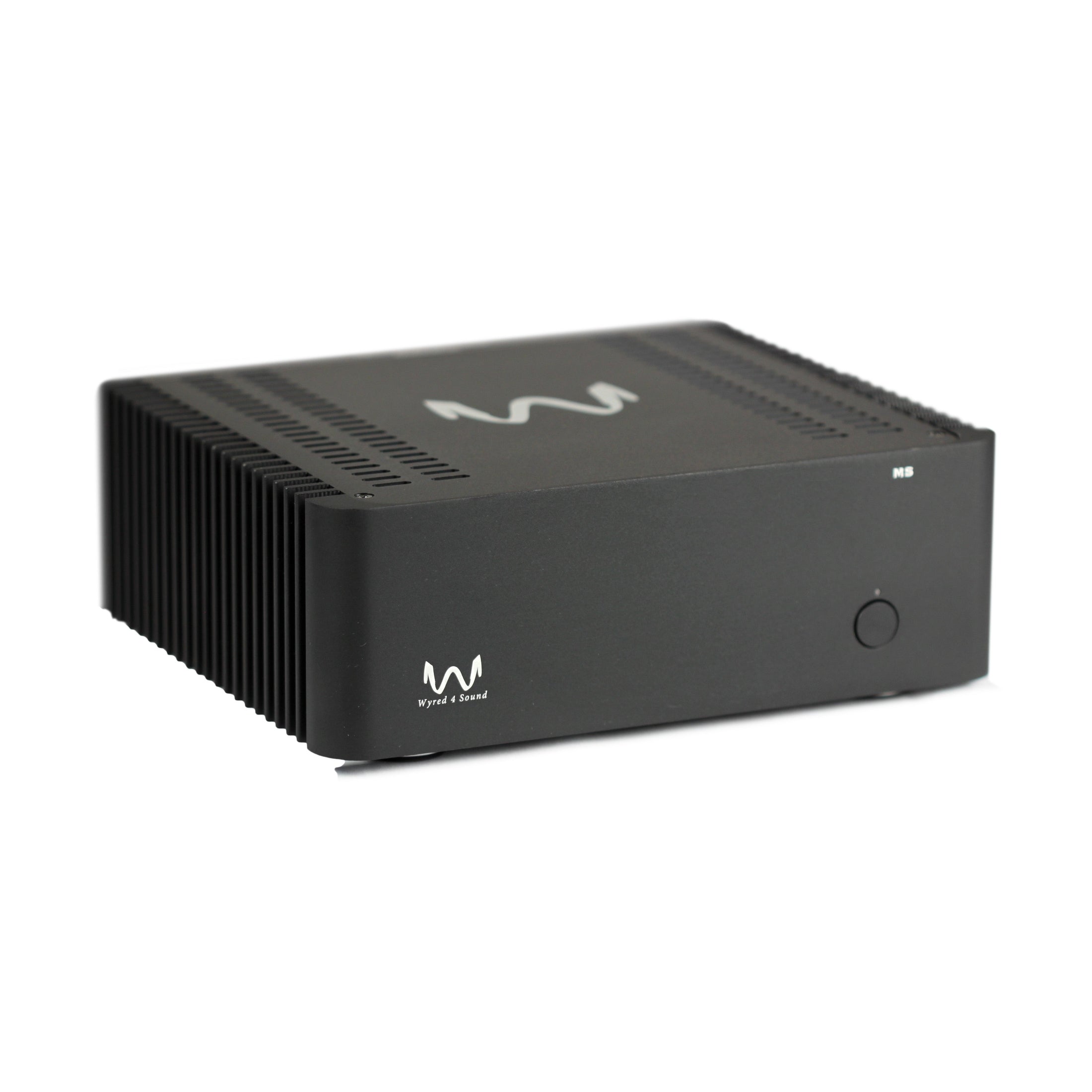
- Music servers: Dedicated devices or server software that store the library and stream it to your system. Examples include Plex, Jellyfin, and dedicated hardware servers. Best when multiple rooms or devices need access to one library. If you want a more affordable option, the MS Essential model shows how a dedicated server fits a tighter budget.
- Playback apps: Phone and tablet apps that browse the library over your home network. Best when the library lives on a server or network drive and you want a remote control rather than a second copy.
Platform-specific setup and verification
Windows. Point the library manager at your top-level Music folder, not individual artist folders, so new additions are picked up automatically.
macOS. Apple Music and similar apps can copy files into their own managed folder on import.
Linux. Most Linux players read tags directly and do not move files, making Linux a good environment for a first cleanup pass, a tagging mistake will not silently relocate files.
Migration and interoperability
Moving a library between players, operating systems, or storage setups is where most collections lose playlists and folder paths. A safe migration follows four steps:
- Export playlists first. Most players export playlists as M3U or M3U8 files. Export before you move anything, because playlists often store absolute paths that break when the library moves.
- Preserve relative paths. Keep the same top-level folder name and artist/album/track layout on the new drive. If paths are identical relative to the library root, most players relink playlists automatically.
- Move, then rescan. Copy the library to the new location, point the new player at it, and let it scan before you delete the old copy.
- Verify tags and artwork. Open a sample of albums in the new player and confirm embedded artwork and tags survived. Artwork stored as separate image files is more fragile than embedded artwork, so check those albums first.
Watch out: A player that stores its library database in a proprietary format may not export playlists in a form another player can read, so test the export on a small playlist first.
Test before you commit
Test any software with a copy of your library before you commit. Confirm it reads your tags correctly, handles your file formats, and keeps your folder structure intact. A tool that passes those three checks on fifty albums is a safer bet than one that looks polished but rewrites your folder layout on first scan.
How to Build a Digital Music Library From an Existing Collection
Most people start with a mix of CDs, downloads, and old files scattered across drives. Building one clean library from that mix takes a clear order of work.
- Gather everything in one place. Copy files from old drives into a staging folder. Do not organize yet.
- Remove exact duplicates. Use a duplicate-finder or your library software to clear identical files.
- Rip CDs at full quality. Use FLAC for lossless copies with accurate metadata.
- Apply your folder structure. Move files into artist and album folders.
- Clean the tags. Fix album artist, track numbers, and genre in batches.
- Import into your library software. Scan the folders and check a few albums by hand.
- Back up the finished library. Do this before you start listening on a new system.
Work in small batches. Finishing one artist at a time keeps mistakes easy to spot and fix.
Backing Up Your Collection and Booking Your Next Setup Step
A digital library is only as safe as its backup. Hard drives fail, and a single copy of years of music is a risk.
For the drive that holds your library, storage speed and reliability matter. A Solid State Drive upgrade for a Wyred 4 Sound music server offers faster boot times, quicker file access, and greater durability than a traditional hard drive.
Here is a simple backup routine:
- Back up new music at least once a month
- Keep one copy on a separate physical drive
- Test a restore from your backup every six months
- Store a copy of your folder layout and tag rules with the backup
Once your library is organized and backed up, you are ready to enjoy it. Start with one album, play it through your system, and listen for the difference a clean, well-built library makes.
Frequently Asked Questions
Is there a way to organize an Apple Music library?
Yes. Apple Music and the Music app on Mac let you sort by artist, album, genre and date added, and you can build playlists and smart playlists from those fields. Start by cleaning up tags with consistent album artist names and disc numbers, because most sorting problems come from inconsistent metadata rather than the app itself. If your files live outside the app, add the folder to the library so the app indexes them, then check for duplicates before you organize further.
How do you organize a large FLAC music library?
Keep a strict artist, album, track folder structure and name files with track numbers first, such as 01 Track Title.flac. Use a music server or library manager that reads FLAC tags so you can browse by album artist, genre or release date without moving files. Before any bulk edit, make a backup copy, because a wrong find-and-replace across thousands of tracks is hard to undo. Check that album artwork is embedded or saved as cover.jpg in each album folder.
How do you back up a digital music library?
Keep at least two copies: one on your main drive or NAS and one on a separate external drive or cloud storage that is disconnected most of the time. Back up the whole folder tree, including tags and artwork, not only the audio files. Test a restore once a year by copying a few albums back to a new location and confirming they play with correct metadata. Recheck backups after any large import or cleanup.