Article: How to Rip CDs for High-Res Audio Quality
How to Rip CDs for High-Res Audio Quality
Last Updated: November 18, 2026
Quick Summary
To rip CDs for lossless audio, use free secure-ripping software such as Exact Audio Copy with AccurateRip checking, and output to FLAC. A standard CD is 16-bit at 44.1 kHz, so ripping gives a bit-perfect copy of the disc, not a higher resolution.
- Standard audio CDs are 16-bit at 44.1 kHz, so rips cannot exceed that resolution.
- Choose secure ripping and AccurateRip checking to catch read errors.
- FLAC is the default lossless format and is roughly half the size of WAV.
- Check each rip log for no errors and a confirmed AccurateRip match.
- Re-rip only the failed tracks, after re-cleaning the disc or trying another drive.
Table of Contents
- What High-Res Means for CD Audio
- Choosing a CD Ripping Application
- Setting Up Exact Audio Copy
- Selecting a Lossless Format: FLAC, WAV, ALAC and AIFF
- Step-by-Step CD Ripping Workflow
- Verifying Rip Accuracy and Fixing Read Errors
- Organizing Files, Metadata and Storage
- Booking a Setup Review for Your Wyred 4 Sound Music Server
- Frequently Asked Questions
What High-Res Means for CD Audio
Learning how to rip CDs is one of the most practical ways to build a serious digital library. But here's the first thing to clear up: a standard audio CD is not high-resolution audio. Standard CD audio is 44.1 kHz at 16 bits. That's the format the Red Book standard defined decades ago, and it's the baseline every ripper works from.
So when people search for "how to rip CDs for high res audio," what they usually want is a lossless, bit-perfect copy of the disc, stored in a format that preserves every bit of the original data. The disc itself sets the ceiling. Ripping gives you a faithful digital copy, not a resolution upgrade.
Keep that in mind as you work through the steps below. The goal is accuracy, not a higher number on the spec sheet.
Choosing a CD Ripping Application
Your ripping software matters more than most people expect. A basic tool may copy audio quickly but skip error checking, which can leave you with subtle glitches you never hear until later.
Look for these features:
- Secure ripping that re-reads damaged sectors and compares results
- Accurate Rip or similar database checking against other users' rips of the same disc
- Lossless output to FLAC, WAV, AIFF, or ALAC
- Metadata lookup for track titles, album art, and tags
- A ripping log you can keep as proof of a clean copy
Many listeners start with free tools, and that can work well. A common mistake is choosing software based only on speed. A fast rip that silently accepts read errors is worse than a slower one that verifies every sector.
Setting Up Exact Audio Copy
Exact Audio Copy (EAC) is one of the most respected choices for accurate extraction on Windows. It is free and built around secure reading, which is why audiophiles keep recommending it. EAC's setup has more steps than most users expect.
Here is a practical setup:
- Download EAC from the official developer site and install it.
- Run the drive configuration wizard so EAC knows your optical drive's read offset.
- Enable secure mode and set the number of retries for damaged sectors.
- Turn on AccurateRip checking so every rip is compared against a database.
- Choose your output format and folder before you start.
Once configured, you rarely need to revisit these settings. Save the profile so you don't repeat the setup for every disc.
Selecting a Lossless Format: FLAC, WAV, ALAC and AIFF
All four formats store audio without quality loss, but they differ in tagging, compatibility, and file size. Before comparing them, anchor on the source: a standard audio CD is 16-bit at 44.1 kHz, so every lossless rip carries exactly that resolution. None of these formats adds bit depth or sample rate, they only decide how the same 16/44.1 data is packaged. That is the honest meaning of "high res" for CD ripping: a bit-perfect preservation of the disc, not an upgrade beyond it.
Here is how the four formats compare on the things that matter for a library:
- FLAC compresses audio without losing data, typically cutting file size to roughly half of the uncompressed original. It supports rich metadata (Vorbis comments), embedded album art, and is read natively by most music servers, network players, and portable players. For most home listeners, FLAC is the default choice.
- WAV is uncompressed PCM and produces the largest files. Tagging support is limited and inconsistent across players, so WAV is best treated as an archival or editing format rather than a library format.
- ALAC (Apple Lossless) is compressed like FLAC and is the natural choice if your library lives in Apple's ecosystem. It supports metadata and album art and plays natively on Apple devices.
- AIFF is uncompressed, like WAV, but carries better tagging support and is common in professional audio work. File sizes are comparable to WAV.
A practical way to think about storage: an audio CD holds up to about 80 minutes of audio. At 16-bit/44.1 kHz stereo, uncompressed PCM runs about 10 MB per minute, so a full disc is roughly 700-800 MB as WAV or AIFF. FLAC and ALAC typically land near half that, so a 500-disc collection is on the order of 175-200 GB in FLAC versus 350-400 GB in WAV. Those are estimates, not guarantees, compression varies with the music, but they are close enough to plan drives and backups around.
A common pattern is to rip once to FLAC for the working library, keep the original discs as the archival copy, and convert to ALAC only if a specific player requires it. Converting between lossless formats does not degrade quality, so you are not locked in.
Watch out: some tools default to "high quality" lossy output (such as 320 kbps MP3 or AAC) even when a lossless option exists. Confirm the output is set to FLAC, WAV, ALAC, or AIFF before you start, or you will be re-ripping the whole collection later.
The four lossless formats all store the same 16-bit, 44.1 kHz data, and they differ mainly in size, tagging and compatibility.
| Format | Compression | Best for |
|---|---|---|
| FLAC | Lossless, about half the size of WAV | Default library format for most listeners |
| WAV | Uncompressed, largest files | Archiving and editing; limited tagging |
| ALAC | Lossless, compressed | Apple ecosystem; plays natively on Apple devices |
| AIFF | Uncompressed, similar size to WAV | Better tagging; common in professional audio |
Step-by-Step CD Ripping Workflow
Follow these steps for each disc:
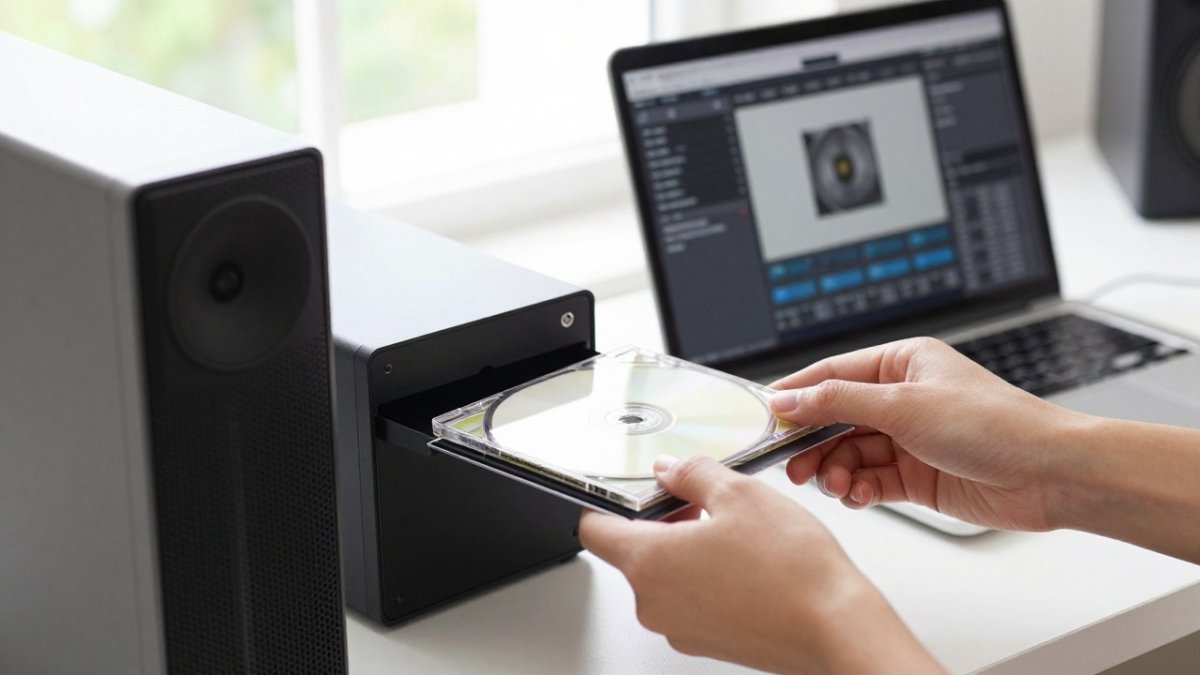
- Clean the disc. Wipe it from the center outward with a soft cloth. Fingerprints and dust cause read errors.
- Insert the disc. Wait for the software to read the table of contents.
- Pull metadata. Confirm track titles, artist, and album art. Correct anything wrong now.
- Select all tracks and your FLAC output format.
- Start the rip and let secure mode finish without interrupting.
- Check the log. Look for "no errors" and a confirmed AccurateRip match.
- Eject and store the disc in a sleeve, away from heat and sunlight.
A rip takes a few minutes per disc, depending on your drive and the number of tracks.
Verifying Rip Accuracy and Fixing Read Errors
Accuracy checking is where secure ripping earns its keep, and it is the part most guides gloss over. Here is what is actually happening when your software verifies a rip.
A secure ripper reads each sector of the disc, and when a read looks suspect it re-reads that sector multiple times and compares the results. If the reads agree, the data is treated as reliable. If they disagree, the software keeps retrying up to a configured limit and then flags the track. Separately, AccurateRip compares a checksum of your extracted track against a database of checksums submitted by other users who ripped the same pressing of the same disc. A match is strong evidence that your copy is bit-for-bit identical to a known-good extraction, not just that it sounds fine.
The ripping log ties this together. A clean log typically shows no read errors, a confirmed AccurateRip match (often reported with a confidence count reflecting how many other submissions agree), and the drive and settings used. Keep that log with each album; it is your proof of accuracy years later.
When verification fails, work through the causes in order:
- Re-clean the disc. Wipe from the center outward with a soft, lint-free cloth. Fingerprints and dust are the most common cause of read errors.
- Re-rip the affected tracks only. The log tells you which tracks failed, so you do not need to redo the whole disc.
- Try a different drive. Drive quality and error correction vary widely; a disc that fails in one drive often rips cleanly in another.
- Increase retry counts in secure mode for stubborn discs, accepting a slower rip.
- Inspect for scratches under good light. Avoid aggressive polishing, which can make things worse.
A failed AccurateRip match is not automatically a bad rip. It can mean your disc is a different pressing than the one in the database, or that too few other users have submitted that disc. In that case, rely on the secure-mode reread results and the absence of read errors in the log as your evidence. If both secure rereads and AccurateRip agree there is a problem, treat the track as suspect and re-rip from another copy of the disc.
Watch out: a rip that completes quickly with no errors reported is not the same as a verified rip. If secure mode and AccurateRip checking are both off, the software may be silently accepting read errors, check the log before you trust the file.
Organizing Files, Metadata and Storage
A clean library saves hours later. Pick a consistent folder structure, such as Artist, then Album, then tracks numbered and named clearly. Let your software write tags so players show album art and credits.
Plan for storage early. FLAC albums typically take noticeably less space than WAV, but a large collection still adds up. Keep at least one backup on a separate external hard drive, and store your rip logs with each album so you can prove accuracy later.
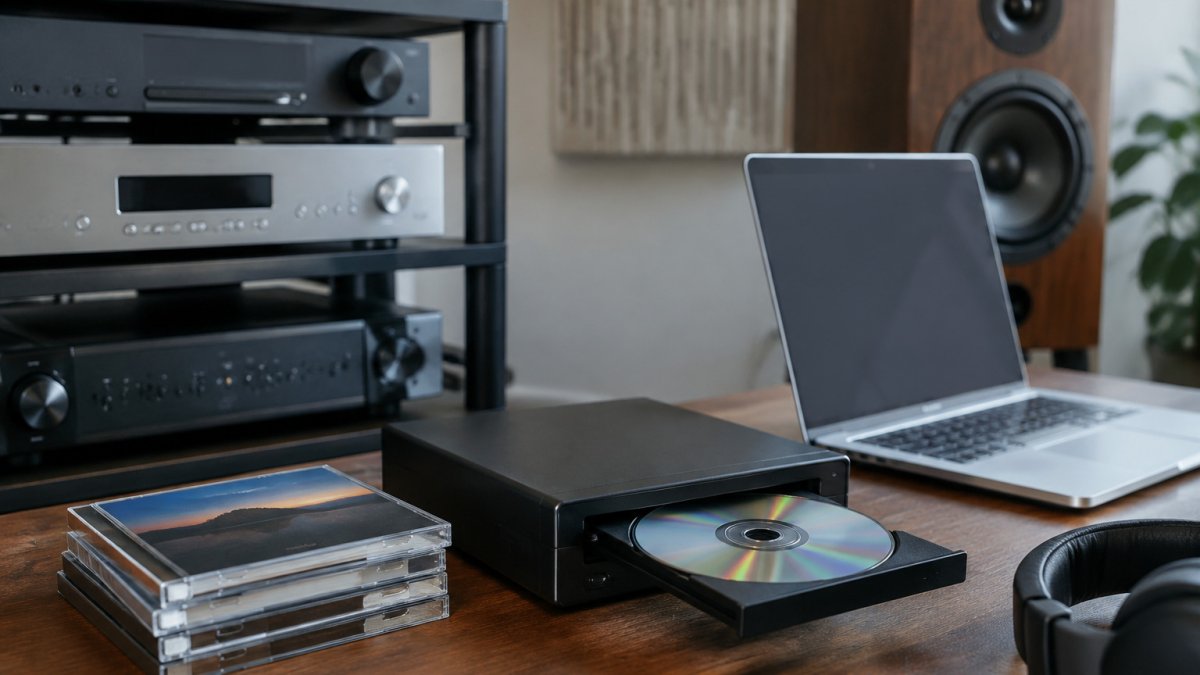
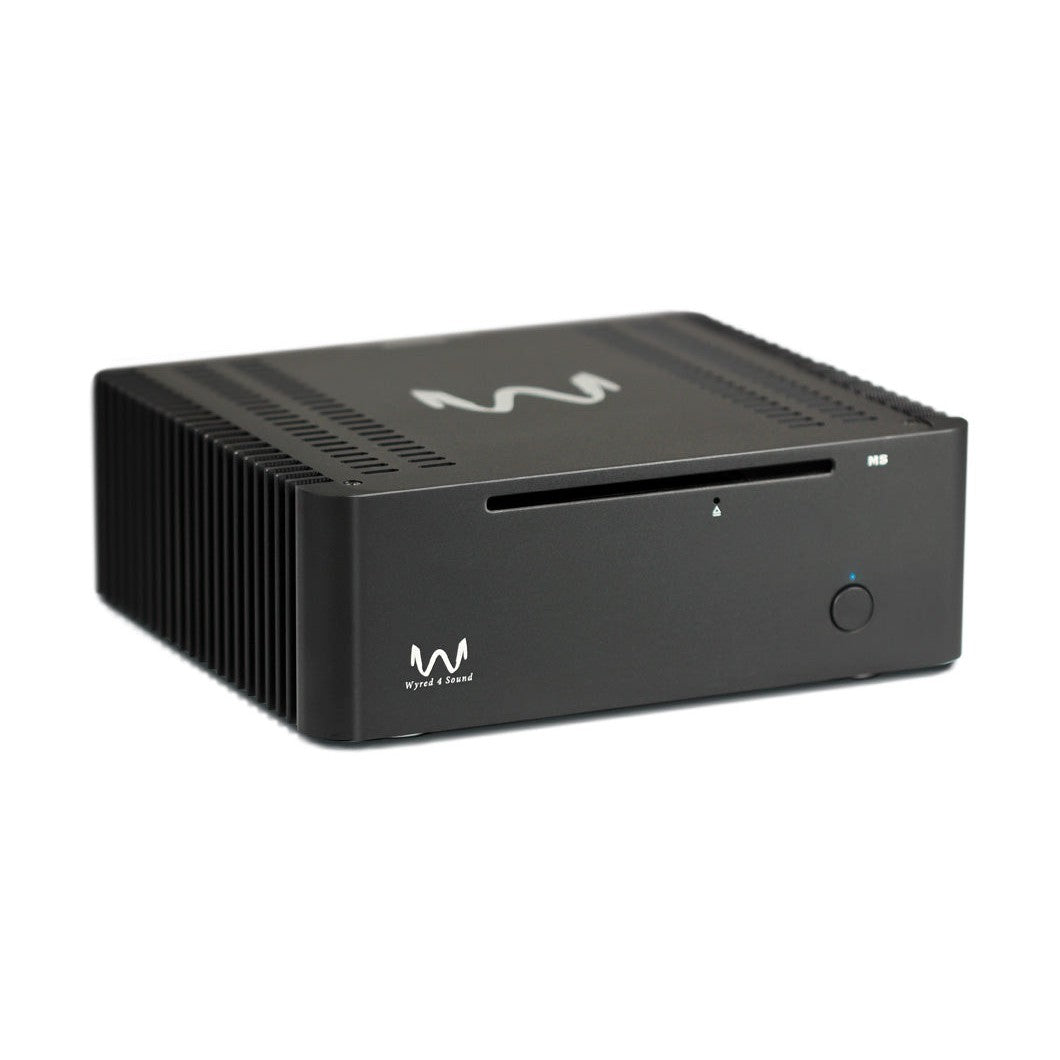
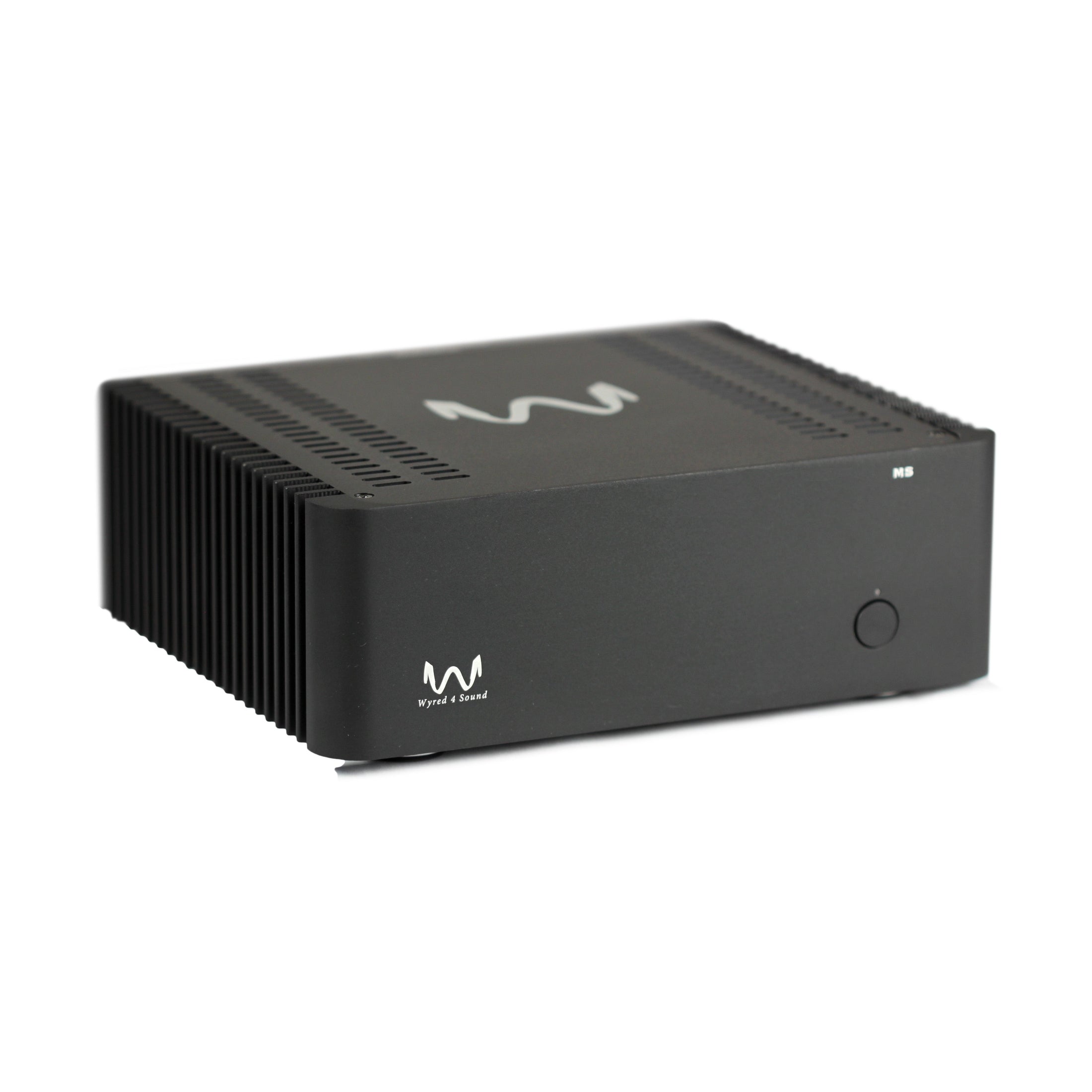
Once your files are organized, a dedicated music server makes playback easier. The Wyred 4 Sound MS music server is priced at $2,999.00 and supports drag-and-drop transfer of music from a computer or NAS drive. The MS Essential is priced at $1,999.00.
Booking a Setup Review for Your Wyred 4 Sound Music Server
Once your CD library is ripped and organized, the next step is getting your playback chain right. A setup review helps you match a music server to your digital-to-analog converter and network so your rips sound their best. If you want that guidance, book a setup review for your music server with the Wyred 4 Sound team, or compare the more affordable MS Essential model if budget is a concern.
For listeners curious about what drives the sound of high-end playback, our deeper look at why high-end audio sounds organic explains the difference in detail.
Ripping your CDs is the start of a library you can trust for years. Wyred 4 Sound builds music servers and converters designed for that library, so the copy you make is the sound you hear.
Frequently Asked Questions
How do you rip high-quality audio from a CD?
Use a ripping application that supports secure ripping, such as Exact Audio Copy on Windows, and choose a lossless output format like FLAC or WAV. Set the drive to read the disc accurately, enable error correction and accurate-rip verification, and rip at the disc's native 44.1 kHz, 16-bit quality. Accuracy matters more than speed, so let the software re-read any sectors it flags before you move on to the next track.
Can a CD be ripped to true high-resolution audio?
No. A standard audio CD stores 44.1 kHz, 16-bit stereo audio, so ripping it produces a bit-perfect copy of that same resolution, not a higher one. Ripping in a lossless format preserves the disc's full quality without degrading it. True high-resolution content, such as 24-bit/96 kHz or DSD files, has to come from a source that was mastered at that resolution.
Should I rip CDs to MP3 or FLAC?
Rip to FLAC if you want to keep the disc's original quality. MP3 is lossy and discards audio data to shrink file size, which cannot be recovered later. FLAC compresses the audio without losing any information, so the file plays back identically to the original track while taking up roughly half the space of a WAV file. Keep MP3 copies only for portable devices with limited storage.
How can you check whether a CD rip is accurate?
Check the ripping log that your software generates. Exact Audio Copy reports read errors, sync problems and whether each track matched entries in the AccurateRip database, which stores checksums from other rips of the same disc. A track that matches AccurateRip is very likely bit-perfect. Re-rip any track flagged with errors, and clean the disc or try another drive if problems persist.